
Core Web Vitals Explained: How to Check and Improve Your Scores
 Busara Saelim


Your website loads fine on your computer. You click around, everything works. So you assume your site is fast. But here's what you might not know: Real users on different devices, slower connections, and various browsers experience your site differently. And those experiences directly affect your search rankings.
Google measures specific metrics called Core Web Vitals that determine whether your site provides a good user experience. These aren't subjective opinions—they're measurable scores based on real user data. And if your scores are poor, you're likely losing both visitors and search visibility.
This guide explains what Core Web Vitals are, why they matter for your website, how to check your scores right now, and specific steps to improve each metric. No technical degree required—just practical fixes that make a real difference.
- The three Core Web Vitals metrics and what they measure
- Why these metrics impact your search rankings
- How to check your scores using free Google tools
- What the numbers mean and how to interpret them
- Step-by-step fixes for common issues
What Are Core Web Vitals?
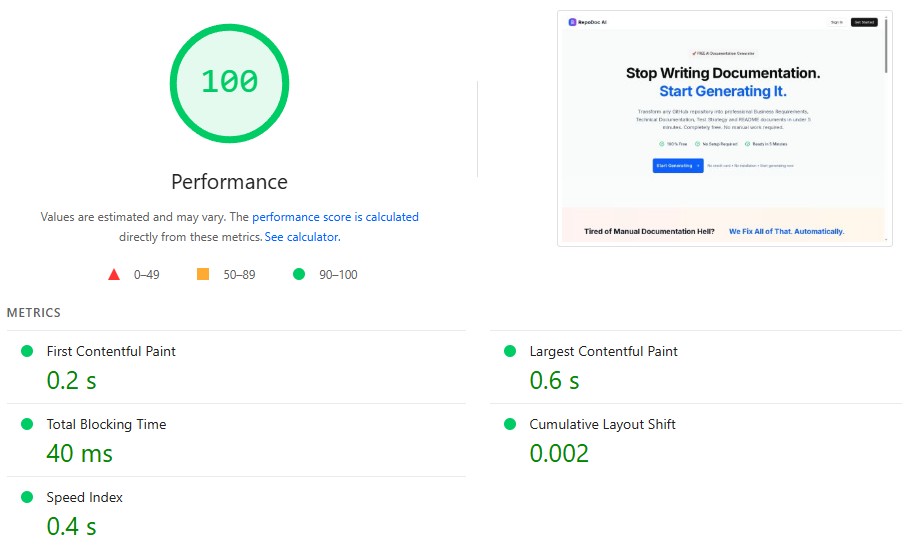
Core Web Vitals are three specific measurements that Google uses to evaluate how well your website performs for real users. Think of them as a report card for your site's speed and usability.
These aren't random metrics. Google chose them because they directly correlate with how frustrated or satisfied people feel when using websites. A site with good Core Web Vitals scores feels fast, responsive, and stable. A site with poor scores feels slow, unresponsive, and janky.
The Three Core Metrics
Each Core Web Vital measures a different aspect of user experience:
1. Largest Contentful Paint (LCP) - Loading Performance
LCP measures how long it takes for the main content of your page to load. Not the entire page—just the largest visible element that matters to users.
This might be a hero image, a main heading, or a large block of text. Whatever takes up the most visual space when the page first loads, that's what LCP tracks.
Target: Under 2.5 seconds
2. Interaction to Next Paint (INP) - Responsiveness
INP measures how quickly your page responds when users interact with it. When someone clicks a button, taps a menu, or types in a form, how long does it take before the page reacts?
This replaced the older FID metric in 2024 because it provides a more complete picture of how responsive your site feels throughout the entire visit, not just the first interaction.
Target: Under 200 milliseconds
3. Cumulative Layout Shift (CLS) - Visual Stability
CLS measures how much your page content jumps around while loading. You know that annoying experience where you're about to click something and the page shifts, making you click the wrong thing? That's what CLS tracks.
Common causes include images loading without dimensions set, ads inserting themselves into the page, or fonts changing size when custom fonts load.
Target: Under 0.1
Why Core Web Vitals Matter
You might be thinking: "My site works fine, why should I care about these specific metrics?" Here are three concrete reasons.
Direct Impact on Search Rankings
Google explicitly uses Core Web Vitals as a ranking factor. This isn't speculation—it's documented in their search ranking systems. Sites with better Core Web Vitals scores have an advantage over slower competitors.
It's not the strongest ranking factor, but it can be the tiebreaker between your site and a competitor's site when content quality is similar.
User Experience Equals Business Results
Slow, unresponsive websites lose visitors and conversions. People abandon sites that don't load quickly. They get frustrated with pages that don't respond to clicks. They leave when content jumps around unpredictably.
Improving Core Web Vitals means improving the actual experience people have on your site. Better experience means more engagement, more conversions, and more success for your business.
Competitive Advantage
Many websites still have poor Core Web Vitals scores. If you fix yours while competitors ignore theirs, you gain an edge in both search rankings and user satisfaction.
How to Check Your Core Web Vitals Scores
You need to know your current scores before you can improve them. Google provides free tools that show exactly how your site performs.
Google PageSpeed Insights (Quick Check)
This is the fastest way to check any individual page's performance.
How to use it:
- Go to pagespeed.web.dev
- Enter your page URL
- Click "Analyze"
- Wait about 30 seconds for results
You'll see two sets of scores: Field Data (real user data) and Lab Data (simulated test). Field Data is more important because it shows actual user experiences.
What the colors mean:
- Green: Good—your page passes this metric
- Orange: Needs improvement—not failing but not ideal
- Red: Poor—this metric is hurting your site's performance
Google Search Console (Site-Wide Overview)
Search Console shows Core Web Vitals for your entire site, not just individual pages.
How to check:
- Log into Google Search Console
- Click "Core Web Vitals" in the left menu
- View separate reports for mobile and desktop
- See which pages have poor, needs improvement, or good scores
This tool groups pages with similar issues together, making it easier to fix multiple pages at once. If twenty pages fail LCP for the same reason, fix the underlying cause once rather than tweaking twenty individual pages.
Chrome DevTools (Advanced Testing)
For developers or those wanting deeper insights, Chrome's built-in tools provide detailed performance information.
- Open your site in Chrome
- Press F12 to open DevTools
- Click the "Lighthouse" tab
- Select "Performance" and "Mobile" device
- Click "Analyze page load"
Understanding Your Scores
You ran the tests and got numbers. Now what? Here's how to interpret what you're seeing.
Score Thresholds
Largest Contentful Paint (LCP):
- Good: Under 2.5 seconds
- Needs Improvement: 2.5 to 4.0 seconds
- Poor: Over 4.0 seconds
Interaction to Next Paint (INP):
- Good: Under 200 milliseconds
- Needs Improvement: 200 to 500 milliseconds
- Poor: Over 500 milliseconds
Cumulative Layout Shift (CLS):
- Good: Under 0.1
- Needs Improvement: 0.1 to 0.25
- Poor: Over 0.25
Field Data vs. Lab Data
Field Data comes from real users visiting your site over the past 28 days. This is what Google actually uses for rankings. If you don't have field data, it means your page doesn't have enough real user visits yet.
Lab Data is a simulated test in controlled conditions. It's useful for diagnosing issues and testing fixes, but it doesn't reflect real-world performance as accurately as field data.
How to Improve LCP (Loading Performance)
If your LCP score is poor, your main content takes too long to load. Here are the most effective fixes.
Optimize Images
Images are the most common LCP element and the most common cause of slow LCP scores.
Quick wins:
- Compress images before uploading (aim for under 200KB for most images)
- Use modern formats like WebP instead of JPEG or PNG
- Set explicit width and height attributes on image tags
- Use responsive images with srcset for different screen sizes
- Add loading="lazy" to images below the fold
- Preload your LCP image with a link rel="preload" tag
Reduce Server Response Time
If your server takes too long to respond, nothing can load quickly.
- Upgrade to better hosting if you're on cheap shared hosting
- Enable caching so repeat visitors load pages faster
- Use a Content Delivery Network (CDN) to serve content from locations closer to users
- Optimize database queries if you're running a database-driven site
Minimize Render-Blocking Resources
CSS and JavaScript files can block your page from displaying content until they finish loading.
- Inline critical CSS directly in your HTML
- Defer non-critical JavaScript
- Remove unused CSS and JavaScript
- Minify CSS and JavaScript files to reduce size
How to Improve INP (Responsiveness)
Poor INP means your page feels sluggish when users try to interact with it. Here's how to make it more responsive.
Reduce JavaScript Execution Time
Heavy JavaScript is the primary cause of poor INP scores.
- Minimize the amount of JavaScript your page loads
- Break up long tasks into smaller chunks
- Remove or defer JavaScript you're not actually using
- Use web workers for heavy computations
- Avoid blocking the main thread with long-running scripts
Optimize Event Handlers
- Debounce or throttle event handlers for scroll and resize events
- Make event handlers as lightweight as possible
- Avoid expensive operations in response to user inputs
Limit Third-Party Scripts
Every analytics tool, chat widget, and social media button adds JavaScript that can slow down interactions.
- Audit all third-party scripts—remove ones you don't actually need
- Load third-party scripts asynchronously when possible
- Use lightweight alternatives to heavy third-party tools
How to Improve CLS (Visual Stability)
Content jumping around frustrates users. Here's how to keep your layout stable.
Set Size Attributes on Images and Videos
When browsers don't know how big an image will be, they can't reserve space for it. The image loads and pushes content down.
- Always include width and height attributes on img and video tags
- Use CSS aspect-ratio for responsive images
- Reserve space for embedded content like videos and maps
Handle Web Fonts Properly
Custom fonts can cause text to shift when they load.
- Use font-display: swap or font-display: optional in your CSS
- Preload important fonts
- Consider using system fonts for better performance
Avoid Inserting Content Above Existing Content
Banner ads, notification bars, and cookie notices that push content down cause layout shifts.
- Reserve space for ads and dynamic content
- Use overlays instead of inserting content into the page flow
- Don't inject content above existing content unless it's in response to user interaction
Quick Wins: Start Here
If you're overwhelmed by all these optimizations, start with these high-impact fixes that most websites can implement quickly.
Immediate Actions (Do This Week)
- Check your Core Web Vitals scores in PageSpeed Insights
- Compress your largest images (anything over 500KB)
- Add width and height attributes to all images
- Enable caching if it's not already active
- Remove any plugins or scripts you're not actually using
Short-Term Improvements (This Month)
- Convert images to WebP format
- Set up a CDN for faster global delivery
- Audit and minimize third-party scripts
- Implement lazy loading for below-fold images
- Fix any render-blocking resources identified by PageSpeed Insights
- Reserve space for ads and dynamic content to prevent layout shifts
Ongoing Optimization
- Monitor Core Web Vitals weekly in Search Console
- Test new pages before publishing
- Review third-party scripts quarterly—remove unused ones
- Optimize new images before uploading
- Update and re-test pages that fall into "needs improvement"
- Keep your CMS and plugins updated for performance improvements
Common Mistakes to Avoid
These mistakes keep sites from improving their Core Web Vitals scores.
Only checking desktop performance: Google uses mobile scores for ranking. Your desktop might be fine while mobile is failing.
Ignoring field data: Lab scores look great but real users experience something different. Always prioritize fixing issues shown in field data.
Adding too many features: Every new plugin, widget, or script potentially hurts performance. Ask if each addition is truly necessary.
Not setting image dimensions: This single mistake causes many CLS issues and is easy to fix.
Using too many third-party resources: Every analytics tool, social media button, and chat widget adds weight. Be selective.
Expecting instant results: Field data updates over 28 days. Make fixes, wait a few weeks, then check if scores improved.
Ongoing Monitoring and Maintenance
Core Web Vitals optimization isn't a one-time project. Scores can degrade over time as you add content, features, and updates.
Monthly monitoring routine:
- Check Search Console Core Web Vitals report
- Identify any new pages failing metrics
- Test your most important pages in PageSpeed Insights
- Review and update pages that dropped from good to needs improvement
- Document what changes might have caused score drops
Start Measuring and Improving Today
Core Web Vitals aren't optional if you care about search rankings and user experience. Google measures these metrics for every site. The question isn't whether to optimize—it's whether you'll do it before or after competitors gain the advantage.
The good news? You now know exactly what to measure, how to check your scores, and what to fix. Start with the quick wins. Check your current scores in PageSpeed Insights. Fix the obvious issues like oversized images and missing dimensions. Monitor your progress over the next few weeks.
Most websites have room for improvement. A site that loads in under 2.5 seconds, responds to clicks in under 200 milliseconds, and doesn't shift content around feels dramatically better than one that doesn't. Your visitors notice the difference, even if they don't know the technical terms.
Make Core Web Vitals part of your ongoing site maintenance. Check scores monthly. Test new pages before publishing. Keep your site fast, responsive, and stable. The rankings and user satisfaction will follow.
Need help identifying specific Core Web Vitals issues on your site and getting actionable recommendations? RankSightAI analyzes your pages for performance issues and provides specific fixes to improve your LCP, INP, and CLS scores.
Article by: Busara Saelim, SEO Content Strategist
Published: October 27, 2025
Last updated: October 27, 2025
Tags:
Get a comprehensive AI SEO analysis and discover exactly what you need to improve your ChatGPT search visibility.
Related Articles
Your AI SaaS needs visibility where your customers search—not just Google. Learn how to optimize for traditional search engines and AI-powered platforms like ChatGPT, Perplexity, Gemini, and Claude.
Thousands of sites use llms.txt, but does it actually help AI citations? Honest guide to this experimental standard with implementation steps and realistic expectations.